Planner Home Page
Below screenshot shows the Planner Home Page as you will see it every time you log into DOL.
(Hover your mouse pointer over the pictures to see more information )
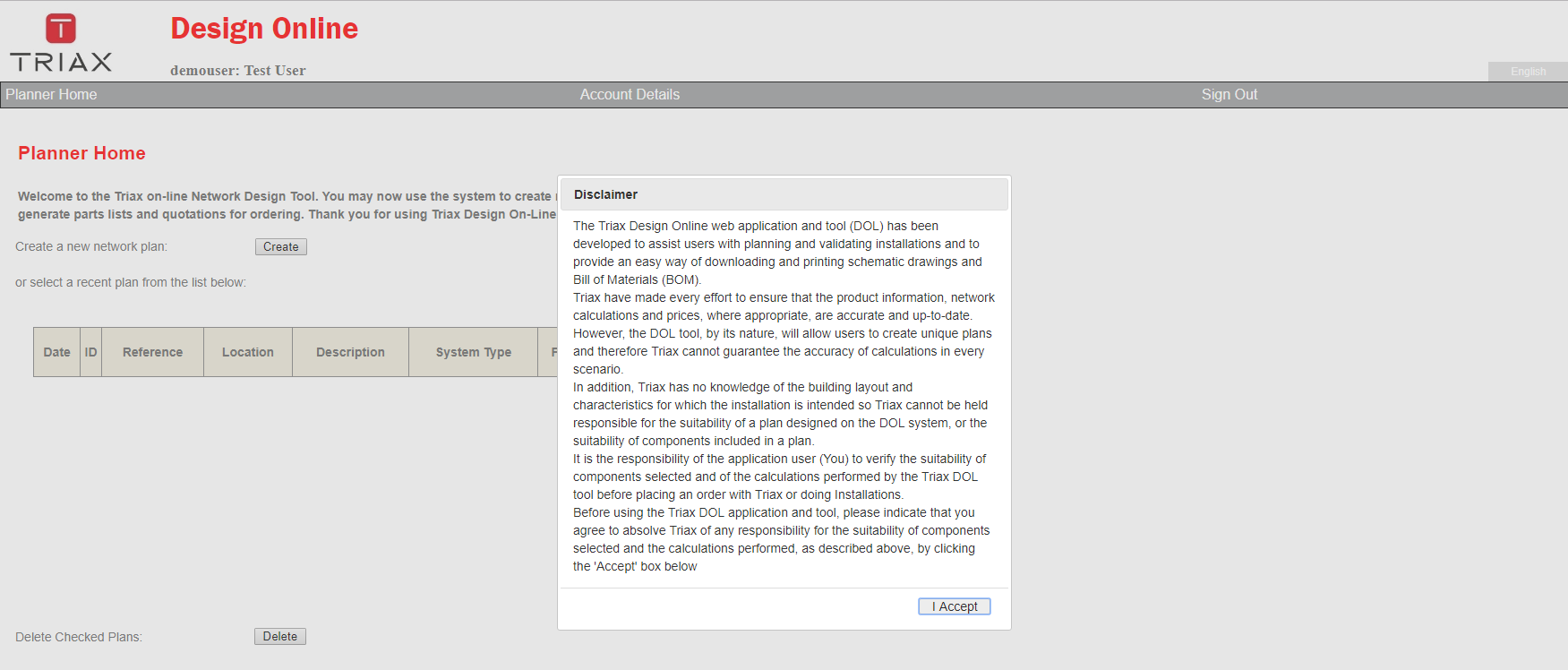
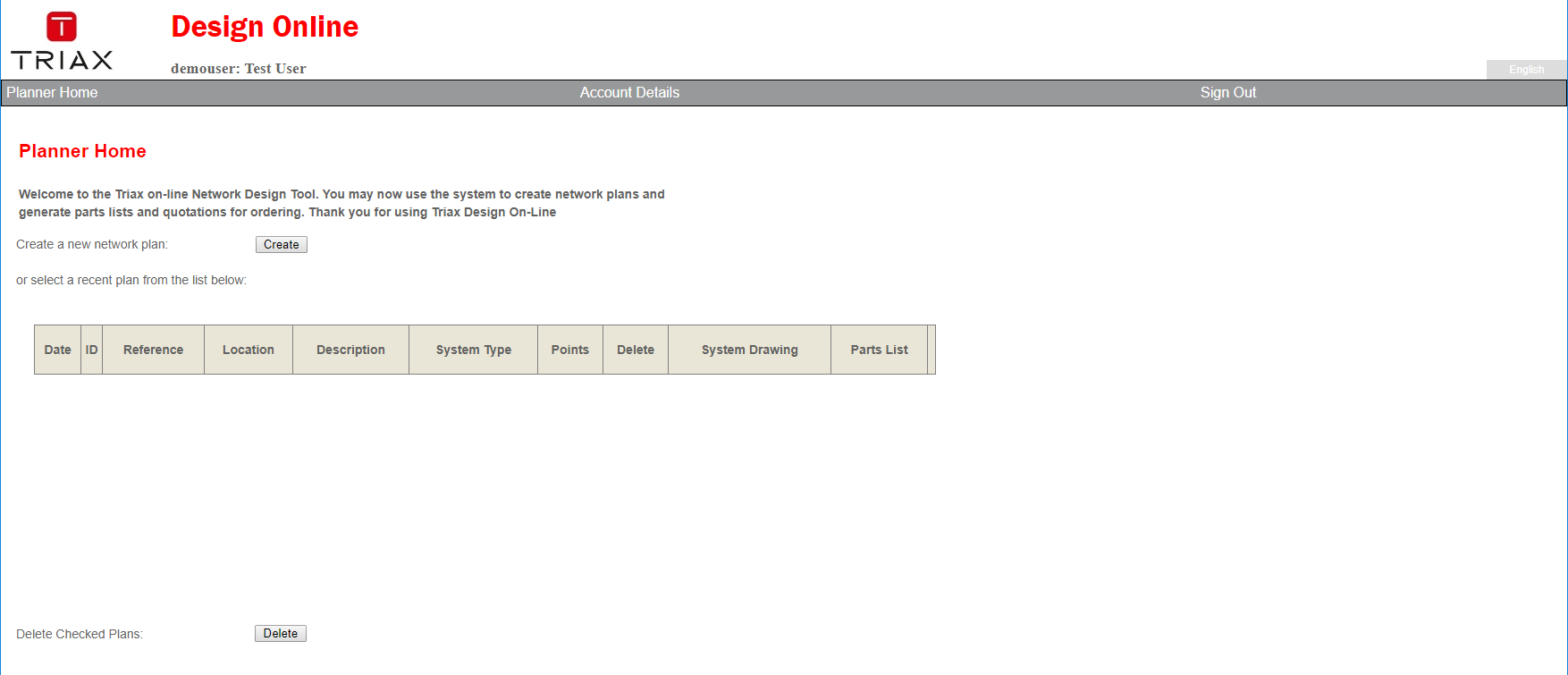
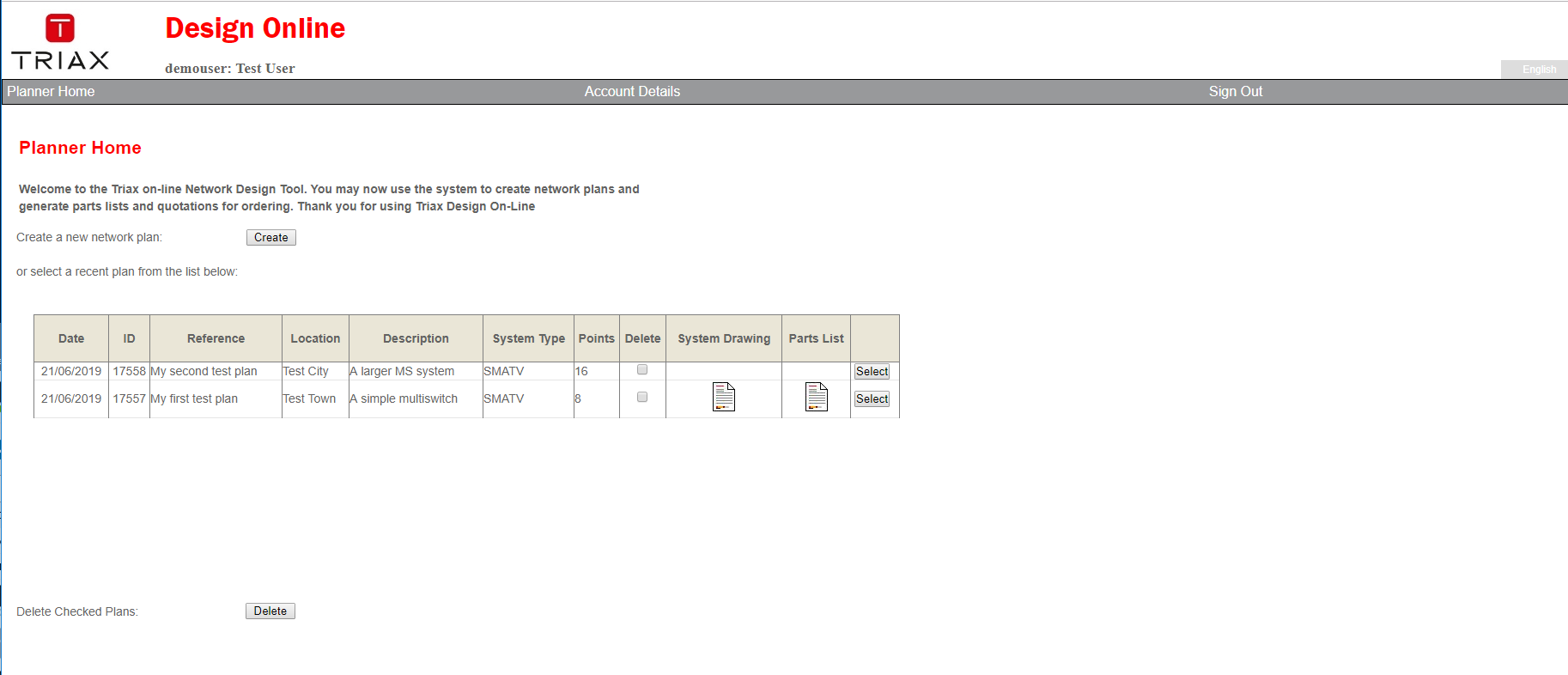
Once you begin to create new Plans (or make copies of old ones) they will all be visible in a scrollable list in the middle of the Planner Home Page (see example below)
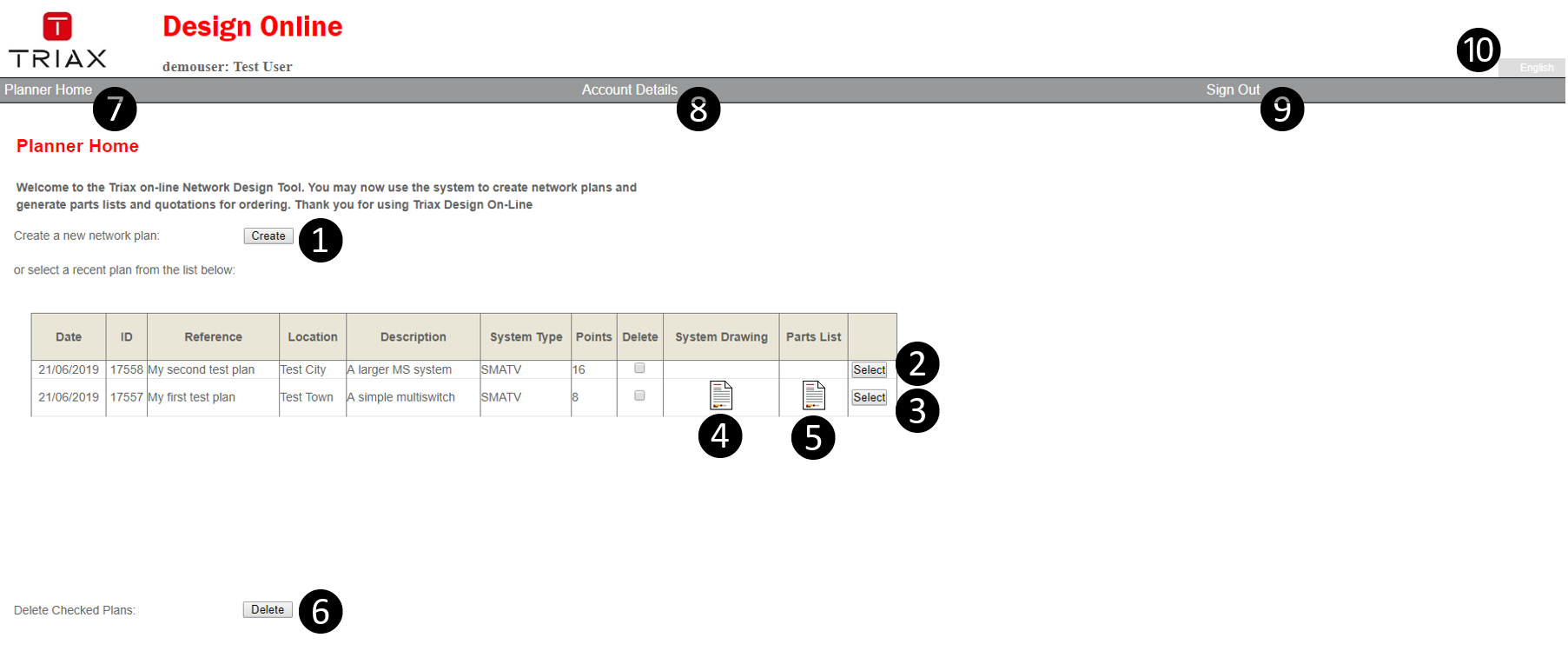
| Number | Description of button, icon or link |
|---|---|
| 1 | 'Create' Button. Starts creation of a new Design Plan from scratch. Brings you to a 'Plan Details Page' with blank Form Fields for you to fill out with all needed Plan Information and Details. Once a Plan is described via this form, you may start doing the actual Network System Design. Click the 'Create a New Plan' in the Table of Contents in the leftmost column to learn more about this. |
| 2 | 'Select' Button. This button selects the newest Plan in your list (the upper one). Then brings you to the 'Plan Details Page' for you to view or edit all information for this Plan. You can also start or edit/change the Design of the Plan and its BOM (Bill Of Material) from there. Click the 'Plan Details Page' in the Table of Contents in the leftmost column to learn more about this. |
| 3 | 'Select' Button. This button selects the next (an older) Plan in your list. Then brings you to the 'Plan Details Page' for you to view or edit all information for this Plan. You can also change the Design of the Plan and its BOM (Bill Of Material) from there. |
| 4 | A PDF icon here indicate that a Design Drawing with products of a Plan was created and saved. Clicking this PDF icon downloads the plan document to your PC. When clicking the downloaded icon on your PC the PDF file will be displayed depending upon your PDF Reader setup. You may also print out the PDF file once it is downloaded to your PC. |
| 5 | A PDF icon here indicate that a BOM (Bill Of Material) with products in the System Drawing was created and saved. Clicking this PDF icon downloads the BOM document to your PC. When clicking the downloaded icon on your PC the PDF file will be displayed depending upon your PDF Reader setup. You may also print out the PDF file once it is downloaded to your PC. |
| 6 | 'Delete' Button. Clicking this button will delete all Plans in your list, where a checkmark has been set in the Delete column. Plans without a checkmark are NOT deleted. WARNING: Deleted Plans cannot be re-created by the system ! |
| 7 | 'Planner Home Page' link. A link available here and on the Plan Details Page. Clicking this link always brings you back to this 'Planner Home Page'. |
| 8 | 'Account Details' link. Clicking this link brings you to the 'Account Details Page' where you may edit your personal profile and password. Click here for more detail. |
| 9 | 'Sign Out' Button. Clicking this link stops your current DOL session, kills your connection to the TRIAX DOL Web Server and brings you back to the DOL Login Page. WARNING: any un-saved work is lost ! |
| 10 | DOL GUI Language selection. Clicking this dropdown menu presents 4 different languages you may select for the DOL User Interface. NOTE: This only changes the GUI language, but has no influence upon the available Product Portfolio |
IMPORTANT.
All the links (7, 8, 9 and 10) are available on all Web User Pages shown in DOL. Clicking 7, 8 or 9 may bring up a DOL System Warning, that your latest un-saved work will be lost if not saved. This is to alert you to this fact and allow you to do a save before selecting the next action via the links.
Be aware, that the main TRIAX DOL GUI (Graphical User Interface) are working in your Internet Browser, controlled by your access to the TRIAX DOL Web Server.
Web Servers are set to abandon a Web connection to a users browser, if nothing has happened for 20 minutes. So please be warned, that if you are interrupted in the middle of your DOL work, and do nothing (click a link or a button) for 20 minutes, your connection is dropped, your un-saved work is lost, and you are re-directed to the DOL Login Page the next time you click a link or a button. So, if your Phone rings, please save your work before attending to it, or you may find yourself without your last un-saved DOL work when you return to DOL!